MP3_COLLAGE: Classes, Inheritance, and Operators
Due date: 2026-04-05 23:59.
Description
Welcome to the final assignment of our image manipulation series. In this last installment, we will utilize the classes you are already familiar with from previous labs and MPs, including
RGBAPixel, PNG, and Drawable, to create a versatile new class called Canvas. The purpose of this class is to enable blending of various shapes and images. To accomplish this, this new
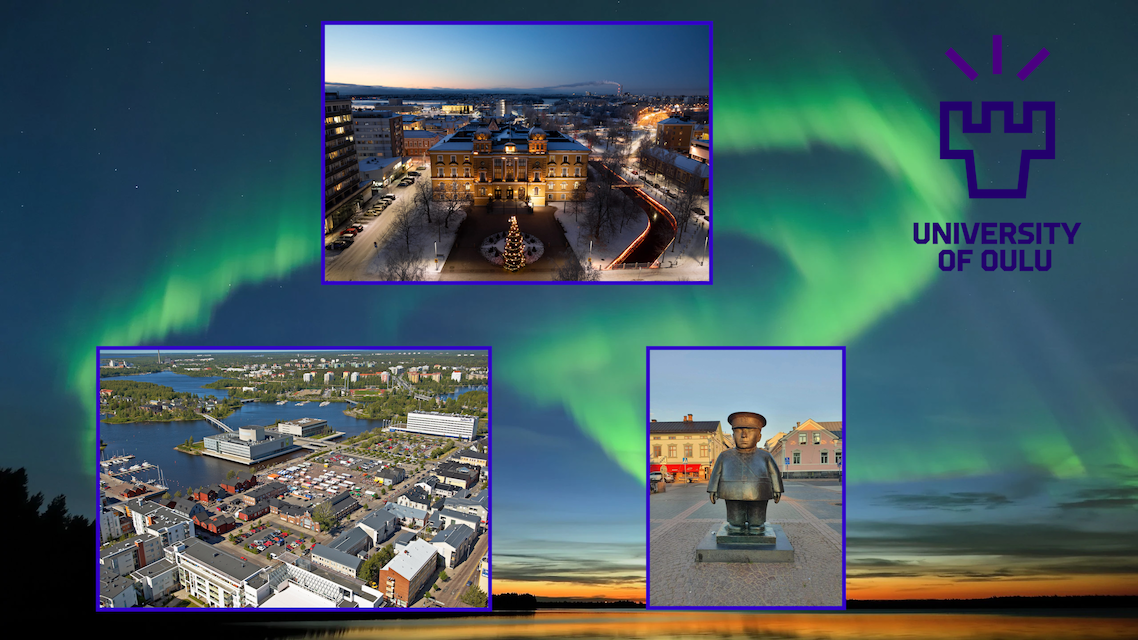
Canvas class will inherit from Drawable. Another new PNGLayer class will inherit from PNG and will allow you to blend scaled, colorized and repositioned PNG layers on top of each other. By the end of this assignment, you will have the means to create fun collages, such as the one on top of this page, using this Canvas class.Download The Provided Files
Start with downloading and unzipping the provided files from here: mp3_collage.zip.
In your provided mp3_collage directory you will find many files, however, to complete your assignment you will only need to modify the following files:
- pnglayer.{cpp,h}
- canvas.{cpp,h}
- drawable.h
Compiling and Running the Provided Code
We provided you with the set of files that properly compiles with:
make
The result is two executable files, collage and collage-asan. Try running
./collage
and you will find two new output files, out.png and collage.png, in your current directory. Check how they look right now (open the files in Windows or any other method).
The provided executable isn't functioning correctly at the moment, so your task is to fix the files to get the correct output images. Right now, collage.png only shows the background aurora image and a white rectangle, but once you make the necessary corrections, it should look just like the collage at the top of the page. You'll need to overlay four new images on the background, with a frame around three of them and a partially transparent University of Oulu logo.
Now, let's talk about out.png. The current code only renders the final layer, in which the text “This text is in the foreground” appears on the black background. Instead, the image is supposed to have some text, lines, and triangles all blended together using the alpha channel. Take a look at the animation below for a visual representation of all of the layers, and the final desired result:

The solution images are also provided to you in soln_out.png and soln_collage.png. Now, let's begin resolving the problems by breaking down the tasks into separate exercises.
You can consider the assignment solved once the
diff command applied to the solution images produces no output or differences between them.diff out.png soln_out.png diff collage.png soln_collage.png
Understanding The Provided Code
The goal of this assignment is to fix definitions of two new classes,
Canvas and PNGLayer located in their appropriate files canvas.{cpp,h} and pnglayer.{cpp,h}.A
PNGLayer object is a subclass of the PNG class. This means it inherits all the member functions of the PNG class; so anything you could do with a PNG, you can also do with a PNGLayer. The PNGLayer class represents an individual layer that can be added to a Canvas. It will hold information such as the position, size, and appearance of the layer.Now, the
Canvas class is responsible for managing a collection of PNGLayers. It allows you to add, remove, and manipulate PNG layers within the canvas. We set it up so that the Canvas class inherits from Drawable, which allows it to implement the draw() function to render all of the PNGLayers on the Canvas.Exercise 1: Data Structure to Hold PNGLayer in a Canvas
Your first task is to establish a suitable way to store the
PNGLayers within the Canvas class. In canvas.h, they are currently stored in a variable called layers as a raw pointer to only a single PNGLayer. This clearly needs to be fixed, and, preferably, without the use of raw pointers or c-style arrays:PNGLayer* layers;
Your task is to redefine the storage structure for
layers in any way you like. You can choose any data structure we have already covered in the course. The new structure should have the capability to hold a minimum of 10 PNGLayers and ensure that they retain the order in which they are added.Exercise 2: Constructor, Destructor, Add, and draw Functions
Once you have modified the declaration of the variable
layers in the previous exercise, it is likely that the code has become broken and does not compile anymore. To ensure that it compiles again, you need to fix the following functions in the canvas.cpp file: the constructor, the destructor, the Add, and the draw functions.Here are the requirements for each function:
Canvas::Canvas()constructor: Initialize thelayersvariable appropriately if needed.Canvas::~Canvas()destructor: Make sure any manually reserved memory gets freed.void Add(...)function: Add thePNGLayerwith the given namenameand other parameters to thelayersstructure. When writing this function, make sure you maintain the correct order of the addedlayers on theCanvassince they are rendered on top of each other based on that order. This will ensure that the intended rendering of thelayers is correct.void Canvas::draw(PNG& canvas) constfunction: Modify theDrawfunction to iterate through thelayersstorage structure according to the order in which they were added, starting from the firstPNGLayerever added to the last one. The current implementation only works for one layerPNGLayer& layer = layers[0];and it won’t compile if left like this. You need to update this line to handle multiplelayerscorrectly.
After you fix the above functions your code should compile. Your
Canvas class can now manage multiple layers:make clean make ./collage
If you check the out.png and collage.png, you can see that the
layers are not yet rendered properly. Although rendering indeed happens in the correct order, you won't be able to see it yet because the PNGLayers are stacked on top of each other while transparency is not yet implemented. To fix this, you'll need to do some more work in canvas.cpp and pnglayer.cpp. You will also need to know a bit about alpha blending, methods in computer graphics for handling layers and transparency.Exercise 3: PNGLayer Constructor
The constructor of the
PNGLayer class needs to be properly configured to enable rendering multiple PNGLayers blended together on a Canvas while handling transparency correctly.In the pnglayer.cpp file, modify the constructor to set the default
alpha values of every pixel to 0, indicating transparency. Although at 0 alpha it won’t show, it’s best to be thorough and set the default values of all other color channels (red, green, and blue) to 255, which matches the PNG constructor and indicates full intensity. This ensures that newly created PNGLayers have transparent pixels by default. When drawing shapes, pixels outside of the shape’s area are unaffected and will therefore remain transparent. This way, drawing and blending a triangle, for example, will add just the triangle to the image, instead of a white rectangle containing a triangle.Tip: Normally, when accessing individual pixels in a
PNG image object, we use the function call operator () defined in the PNG class, like this:RGBAPixel& pixel = image(x, y);
However, in the context of the
PNGLayer class, which inherits from PNG, you can directly access this operator by dereferencing this, as in:RGBAPixel& pixel = (*this)(x, y);
Alternatively, you could call the operator
() explicitly: RGBAPixel& pixel = operator()(x, y);
Exercise 4: getBlendedPixel Function
We need to have a proper way to access the color of individual pixels of each
PNGLayer. As PNGLayer inherits from PNG, it seems tempting to access the RGBA values of an individual pixel of the PNGLayer, by simply calling the PNGs function call operator ():RGBAPixel & PNG::operator()(size_t x, size_t y);
However,
PNGLayer has a private variable called color_, defined in pnglayer.h that should be blended with each pixel without modifying the source image. In this case, we want to multiply each pixel with color_ component-wise. In other words, we need a function that gets the pixel in given coordinates, creates a copy of it, then multiplies it with color_ and returns it.Your task is to finish writing the following function responsible for returning the values of blended pixels of the
PNGLayer:RGBAPixel getBlendedPixel(size_t x, size_t y);
To achieve this, use the following blending algorithm: multiply each RGBA channel of every
PNGLayer pixel with the corresponding RGBA channel of color_, and then divide the result by 255. This division ensures that the resulting color values are normalized within the range of 0 to 255. Note: if our color values were defined as 0-1 instead of 0-255, that division would be unnecessary.After fixing this, you will see the change in colors of the out.png file, as the text will appear red. That is because the foreground.png normally has white text, but now the white pixels are being multiplied with red, which results in red.
Exercise 5: draw Function
As you can see in the comments of the
Canvas::draw function in canvas.cpp, there are a few more things that need to be fixed. You already made sure that the first loop iterates through the layers in the correct order, however, there are three more aspects to fix about the function. You can tackle these issues in any order you like, but we listed them in the order of their location in the code of the Canvas::draw function:Properly Arranging PNGLayers on Canvas
Currently, each
layer is placed onto the canvas at a default position and scale. However, we need to place them on the canvas according to the values of their layer->scale() and layer->position() Start with uncommenting the following line:
// You should uncomment the below line and use in the section below
Vector2 pos = layer.getPosition();
As you are iterating through each pixel (x,y) of each layer, you need to update these pixels to the new values (x1, y1) according to their
sc and pos. Do this by updating the following lines:// Modify the two lines below
int x1 = x;
int y1 = y;
Once you scale up a
PNGLayer, it is possible for gaps to appear between adjacent pixels in the pixel structure. This means that after the layer is scaled up, pixels that were originally adjacent may no longer be adjacent, resulting in empty spaces between them.To address this issue, there are two loops in the code that iterate through the
xs and ys coordinates of the adjacent pixels, filling in the gaps. To ensure that your (x1, y1) coordinates include these adjacent pixels, add xs to x1 and ys to y1:// Add these lines to your code
x1 += xs;
y1 += ys;
Once this is fixed, you should see multiple boxes positioned around the image in collage.png!
Alpha Blending of PNGLayer
Alpha blending has not been implemented. Alpha blending is a technique that combines the colors of overlapping pixels based on their transparency, resulting in smooth and transparent composite images. The idea is to interpolate between the new and the old pixel based on the new pixel’s alpha value. This is called straight alpha blending. The formula looks like this:
result = (source.RGB * source.A) + (dest.RGB * (1 - source.A))In other words when drawing a pixel with 0 alpha, nothing should be drawn. Alpha 255 means the previous pixel is completely replaced by the new pixel, and with alpha 1-254, the two colors are interpolated smoothly.
Note, however, that you must handle each RGB channel separately and of course follow the syntax and naming in our code, so don’t just copy that line!
Once this is fixed, you should see other layers below the foreground text in out.png!
Note, however, that you must handle each RGB channel separately and of course follow the syntax and naming in our code, so don’t just copy that line!
Once this is fixed, you should see other layers below the foreground text in out.png!
After solving all of these, the structure of these images should start to become apparent, but some issues still remain to be fixed.
Exercise 6: Remove and Swap Function
Although out.png should show the correct output now, collage.png has some issues, which we can resolve by fixing some functions in canvas.cpp.
- The reason you see squares on top of the background image instead of the images is that the squares are meant to be the frames, but it only works if they are drawn before the images. To fix the order of the layers, the
Swapfunction must be implemented. It takes twoPNGLayers as arguments, locates them in the list and swaps their positions. The implementation of this function may depend on how the list is implemented. You might also need to implement some helper member functions forPNGLayerclass.
- The
Removefunction should locate the given element in the list and remove it so that it is not drawn anymore, but the memory should not be freed here. The list should otherwise retain its order, so if something in the middle of the list is removed, make sure the continuity of the list is not broken. This should get rid of the frame for the partly transparent logo since it doesn’t look very good there!
Finally, collage.png should match soln_collage.png! I also encourage experimenting with changing things around in
main.cpp or adding your own images, since there are more things that you could do here, such as applying color to the collage images or scaling them. That might also reveal some flaws in our implementations. After all, image manipulation can get quite tricky!Exercise 7: One More Thing
While you have corrected the output .png files, there is still one issue remaining: there are memory leaks in your program, which our autograder will detect. To fix the memory leaks, go through drawable.h and canvas.h files. Are all of the principles of inheritance discussed in lectures implemented properly? Once you fix any bugs, you will be done with this assignment.
Acknowledgments
We would like to express our gratitude to prof. Cinda Heeren and the student staff of the UIUC CS Data Structures course for creating and sharing the programming exercise materials that have served as the basis for the labs used in this course.
Revised by: Elmeri Uotila and Anna LaValle
Anna palautetta
Kommentteja tehtävästä?