MP2_INTRO: Makefiles and Classes in C++
Due date: 2026-03-22 23:59.
While you are working independently on this MP, remember that we are here to support you. Feel free to ask us questions about the MPs during labs or on Discord.
Getting the files
Start with downloading and unzipping the provided files from here: mp2_intro.zip.
There will be many files in your mp2_intro directory, but you will only need to modify the following files:
- Makefile
- RGBA/rgbapixel.cpp
- RGBA/rgbapixel.h
- intro.cpp
All other files including any testing files you might add will not be used for grading.
Adding your RGBAPixel class to this project
Before starting this MP, make sure you have finished lab1_intro.
- Copy your rgbapixel.cpp and rgbapixel.h files from lab1_intro.
- These files need to be placed into the RGBA directory within the mp2_intro assignment folder.
Once you have copied the files, please do not make any further modifications to them, as our autograder will not evaluate them.
Part 1: Create a Makefile
To fully grasp the structure of C++ projects, it's important you understand the compilation process. Go through the MP1_Make: Makefile Tutorial and create a Makefile for this assignment. Alternatively, you may use lab1_intro/Makefile as convenient starting point as it already includes all of the necessary tags for PNGs.
Your Makefile must compile together your own solution files, namely main.cpp, intro.h, intro.cpp, and files in the RGBA directory. Do not have typos in your file names or your Makefile! For example, make sure your Makefile compiles a file named main.cpp, NOT a file named main.C or test.cpp or any other such thing.
Please make sure your Makefile does not compile extra files that are not part of this MP. For example, do not add in files from the Makefile tutorial by mistake; the only files the Makefile should be dealing with are the few listed above.
Your Makefile must produce an executable called intro (all lowercase). Once you are done, you should be able to compile your code and run your newly created executable. However, in order for it to produce interesting results, we should fix the code, too.
Part 2: Rotate an Image
Open intro.cpp and complete the
rotate function. This function must:- Read in inputFile,
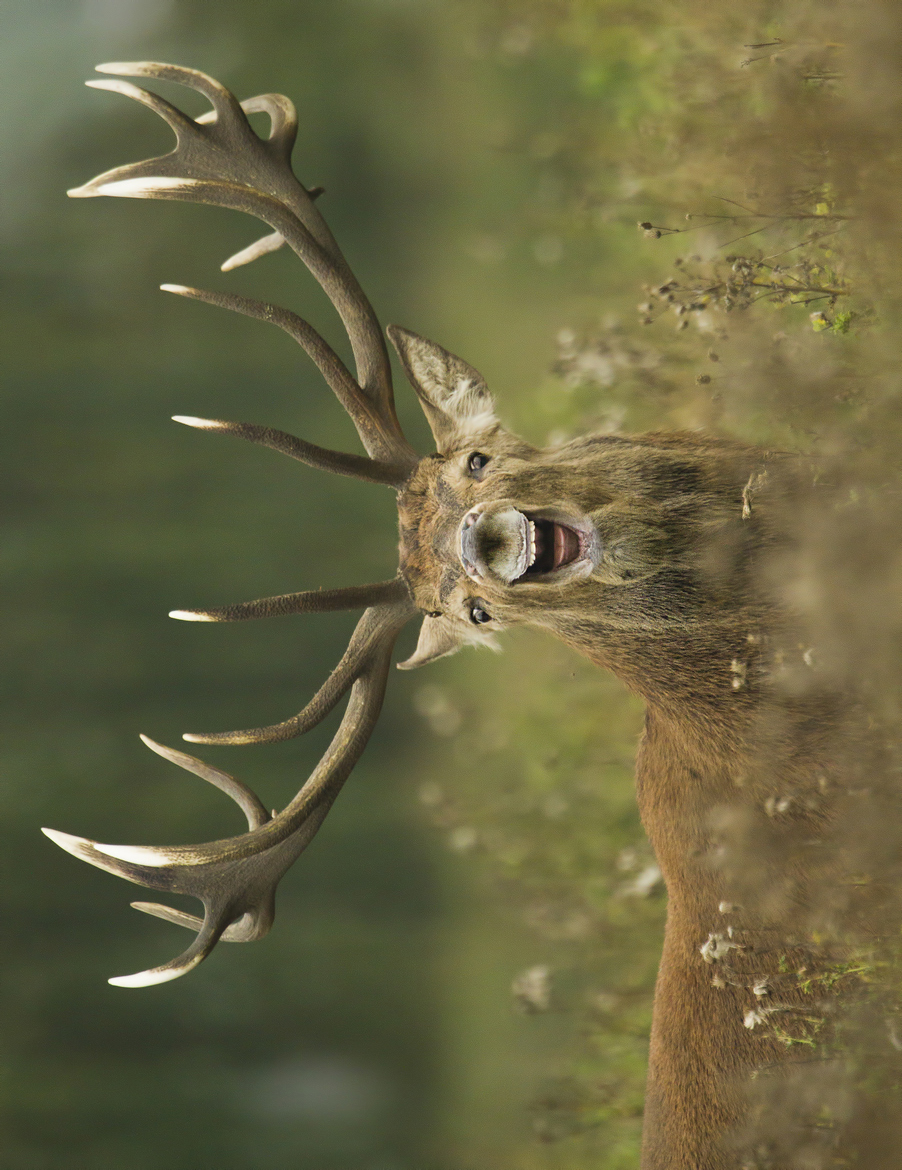
- Rotate the image by 90 degrees counter-clockwise,
- Write the rotated image out as outputFile.
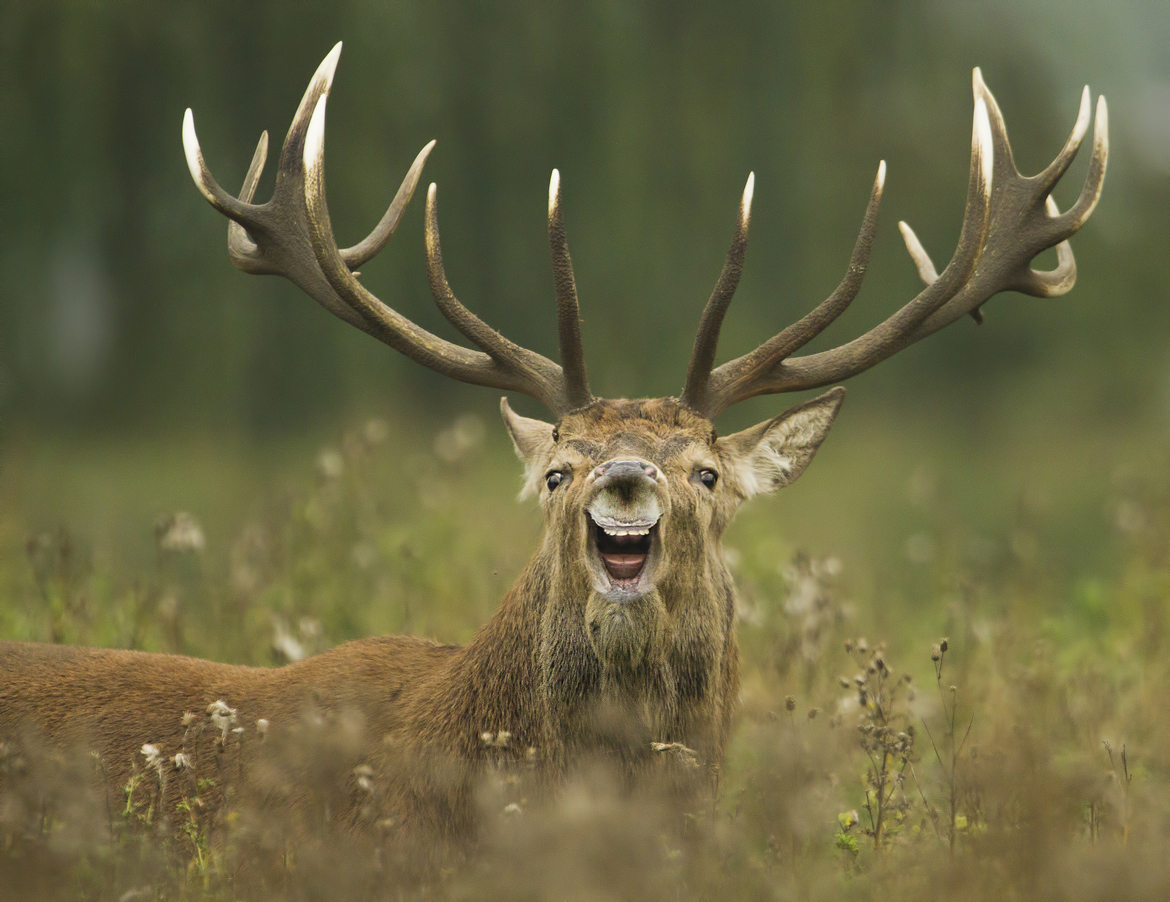
Here’s in_reindeer.png:
And here it is rotated by 90 degrees counter-clockwise, in out_reindeer.png file:
In order to complete this past of the MP, you will need to make use of the
PNG class from RGBA/png.h, .cpp, which you learned about in lab1_intro.Hint: Take a piece of paper and draw a 5x5 grid on it. Mark the box at (0, 1). Rotate that paper 90 degrees and note where the marked box is now located. Repeat for other squares if necessary. Can you find the pattern/formula for how the pixel moves?
Testing Part 2
The Makefile you created in Part 1 must produce an intro executable. The following command will compile the code and will create the executable intro:
make
The
main function (located in main.cpp) has been provided for you that will call the rotate function to read in in.png and output out.png. With that, you may use the given files in_reindeer.png, out_reindeer.png, in_aurora.png, out_aurora.png, in_lakka.png, and out_lakka.png to test your program. First, copy in_reindeer.png to in.png by typingcp in_reindeer.png in.png
Then run your program:
./intro
Finally, compare the output by opening each file and looking at them or using
diff to compare your output to the expected output:diff out.png out_reindeer.png
If
diff exits without any output, then the files are the same! :)Part 3: Getting Creative
Open up intro.cpp and complete the
myArt function. The myArt function must:- Return a
widthxheightPNG image that contains an image with the original art you have created. - The
widthandheightof your image will always be the same – every image generated must be a square. - By default, the
widthandheightare both800. We will look at your art rendered at 800 x 800. - You should focus on making sure your art looks the way you like at 800 x 800. However, your art must scale to any size (eg: be generic).
- Your art must be unique and something you find beautiful or meaningful. There are very few requirements:
- Your art must contain at least three unique colors.
- Your art must not contain any external resources (eg: no loading an image from disk/web)
That’s it – everything else is up to you! You are highly encouraged to use gradients, fractals, or other designs in your art. More than anything else, have fun! Feel free to share it both on Discord and with your friends and family!
Testing Part 3
The main.cpp provided for you will produce your artwork if you run
./intro with a command line parameter. If you provide a number after ./intro, it will save your artwork as art.png. For example:./intro 800
You can now open your newly generated art and marvel at it! You just created something beautiful and unique that never existed before - congratulations!
Acknowledgments
We would like to express our gratitude to prof. Cinda Heeren and the student staff of the UIUC CS Data Structures course for creating and sharing the programming exercise materials that have served as the basis for the labs used in this course.
Revised by: Elmeri Uotila and Anna LaValle
Anna palautetta
Kommentteja tehtävästä?