Code::Blocks
How to create a project in Code::Blocks
- Click Create a new project on the start screen, or navigate to File > New > Project
- Select Console application and click Go to follow the project wizard.
- If there was an error in selecting a valid folder for you project. Then Choose downloads folder as your project directory.
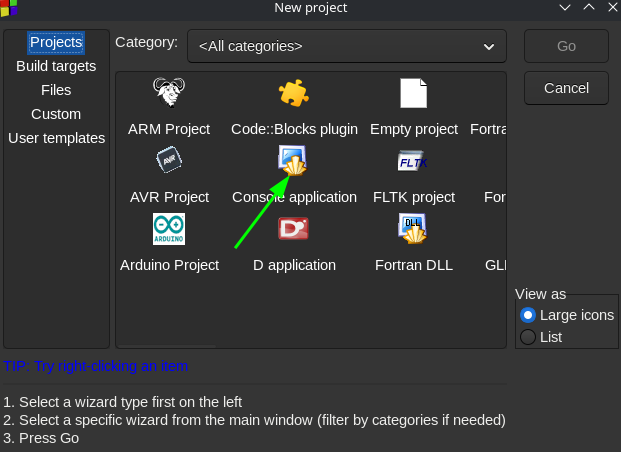
- You can choose any name for the project. Just make sure that you choose C as the coding language and GNU GCC as the compiler.
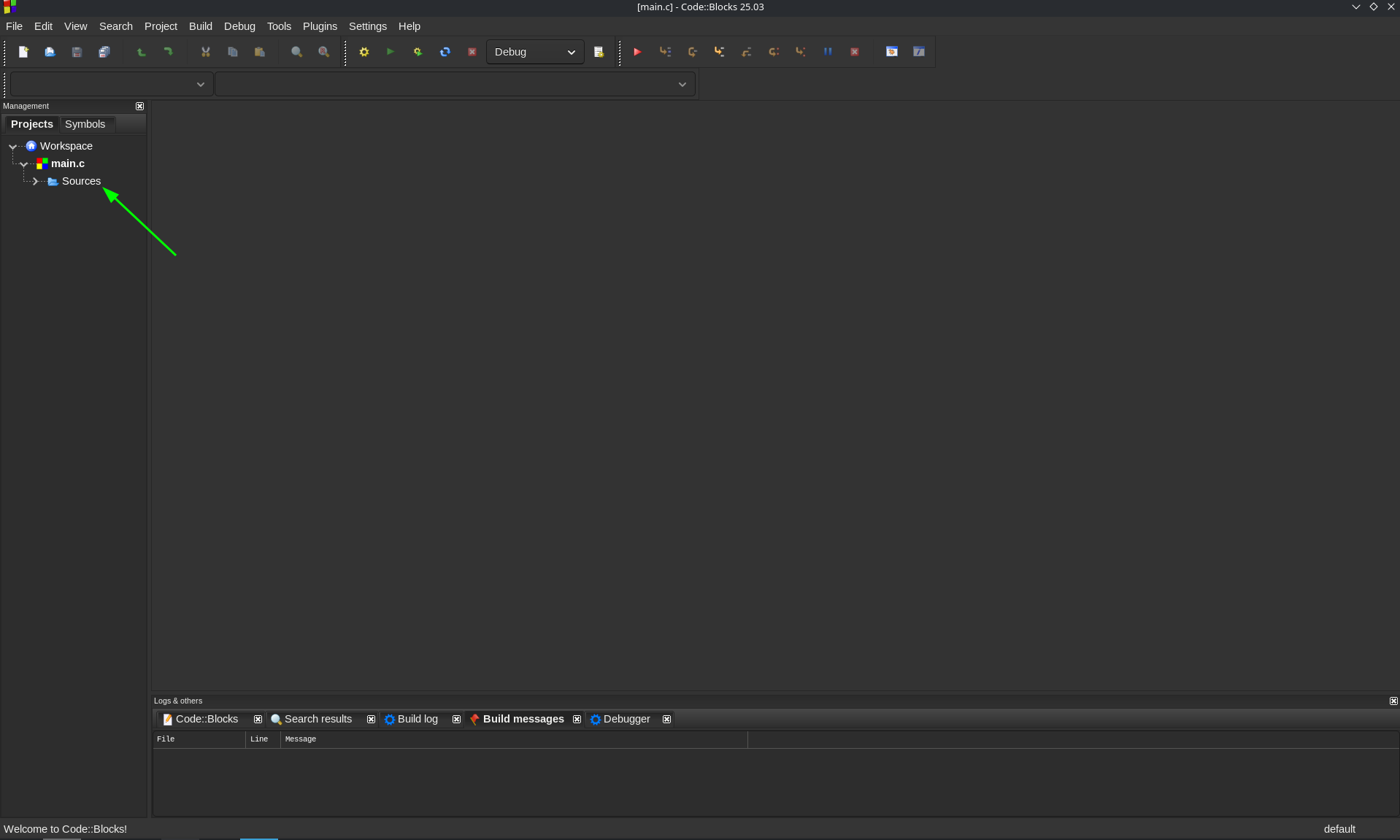
- After creating your project, expand the Sources folder under your project's name in the left Management pane, and open main.c.
Writing Compiling and Running Code
- Write your code directly into the main.c file.
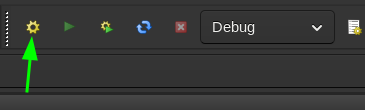
- Click the gear icon in the top toolbar to Build (compile) your program.
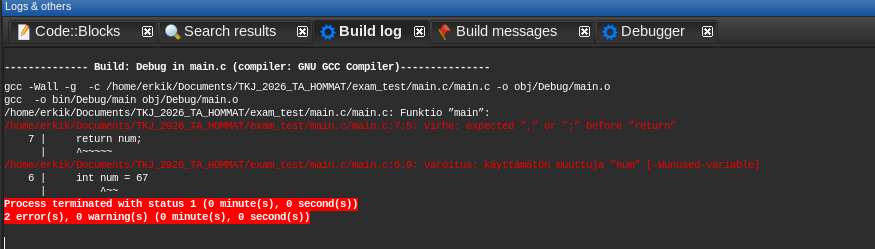
- After compiling, check the Build messages or Build log tab at the bottom. A successful build will show:

- If there were errors, they will show up in Build log like this for example:
- Click the green play triangle icon (Run) on the top toolbar to run your program:

- A console terminal window will open showing your program's output. Remember to close the terminal before you recompile your program.
GCC (NOT WORKING AT THIS MOMENT)
This guide explains how to compile and run C programs from the terminal in the Examinarium environment.
1. Navigating to Your Files
Open the terminal, can be either Command Prompt or PowerShell, and navigate to the folder where the code you are working on is saved:
cd path\to\your\folder
- To view files in the current folder:
dir - To check that GCC is available:
gcc --version
General format of GCC
gcc <1st options><2nd options>
Common values for 1st options (compiler, preprocessor, and warning flags):
- -Wall: enables common compiler warnings
- -Wextra: enables additional stricter warnings
- -Werror: treats all warnings as fatal errors
- -std=c99: specifies the C99 standard (or
-std=c11) - -g: generates debug information (for GDB)
- -c: compiles to an object file (
.o) without linking - -I <dir>: adds a folder to search for header files (
.h)
Common values for 2nd options (output and linker flags):
- -o <file>: sets the name of the output executable (e.g.,
-o main.exe) - -l<name>: links against a library; must come after files (e.g.,
-lmformath.h) - -L <dir>: adds a folder to search for library files (
.a/.lib) - -static: packs all linked libraries into the executable file
- -shared: builds a shared library (DLL) instead of a regular program
Example 1: Compiling and Running a Single File
File: main.c
#include <stdio.h>

int main(void) {
    printf("Hello GCC!\n");
    return 0;
}
Compile:
gcc -Wall -Wextra -std=c99 main.c -o main.exe
Run:
.\main.exe
Output:
Hello GCC!
Example 2: Identifying Compiler Errors
File: main.c (missing semicolon on line 4)
#include <stdio.h>

int main(void) {
    printf("Hello GCC!\n")
    return 0;
}
Compile command & output:
gcc -Wall -Wextra -std=c99 main.c -o main.exe
main.c: In function 'main':
main.c:5:5: error: expected ';' before 'return'
    5 |     return 0;
      |     ^~~~~~
- The error message names the file (
main.c), line (5), column (5), and what was expected.
Example 3: Compiling Multiple Source Files
Files: main.c and utils.c
Compile both source files into one executable:
gcc -Wall -Wextra -std=c99 main.c utils.c -o app.exe
Run:
.\app.exe
Example 4: Including Headers from a Separate Folder
Directory structure:
project/
├─ include/
│   └─ utils.h
├─ src/
│   └─ main.c
Compile using
-I to specify the header path:gcc -Wall -Wextra -std=c99 -I include src/main.c -o app.exe
Example 5: Using the Math Library (-lm)
File: math_demo.c
#include <stdio.h>
#include <math.h>

int main(void) {
    double root = sqrt(16.0);
    printf("Root: %.1f\n", root);
    return 0;
}
Compile (place
-lm at the very end):gcc -Wall -Wextra -std=c99 math_demo.c -o math_demo.exe -lm
Run:
.\math_demo.exe
Output:
Root: 4.0