Pico TKJHAT Simulation Guide
Welcome to the browser-based Raspberry Pi Pico & TKJHAT simulation environment! This platform allows you to write, compile, and run C code on an emulated RP2040 microcontroller with the custom TKJHAT add-on board directly from your web browser.
How to start
The dashboard above shows the real-time capacity of the simulation. When capacity is available, click "Enter Simulation Lab →" to launch into your private virtual Pico and TKJHAT environment. Your browser automatically remembers your personal session, so you can safely open multiple tabs or reopen the page later to return to your pod.
Keep in mind that your browser only preserves your edited code. If your session times out due to inactivity, the emulation restarts, meaning sensor inputs and runtime hardware states reset, so you will need to reconfigure external conditions and rerun your code. Once you are finished working, please close all simulator tabs so the environment can shut down and free up cluster capacity for other students.
How to use
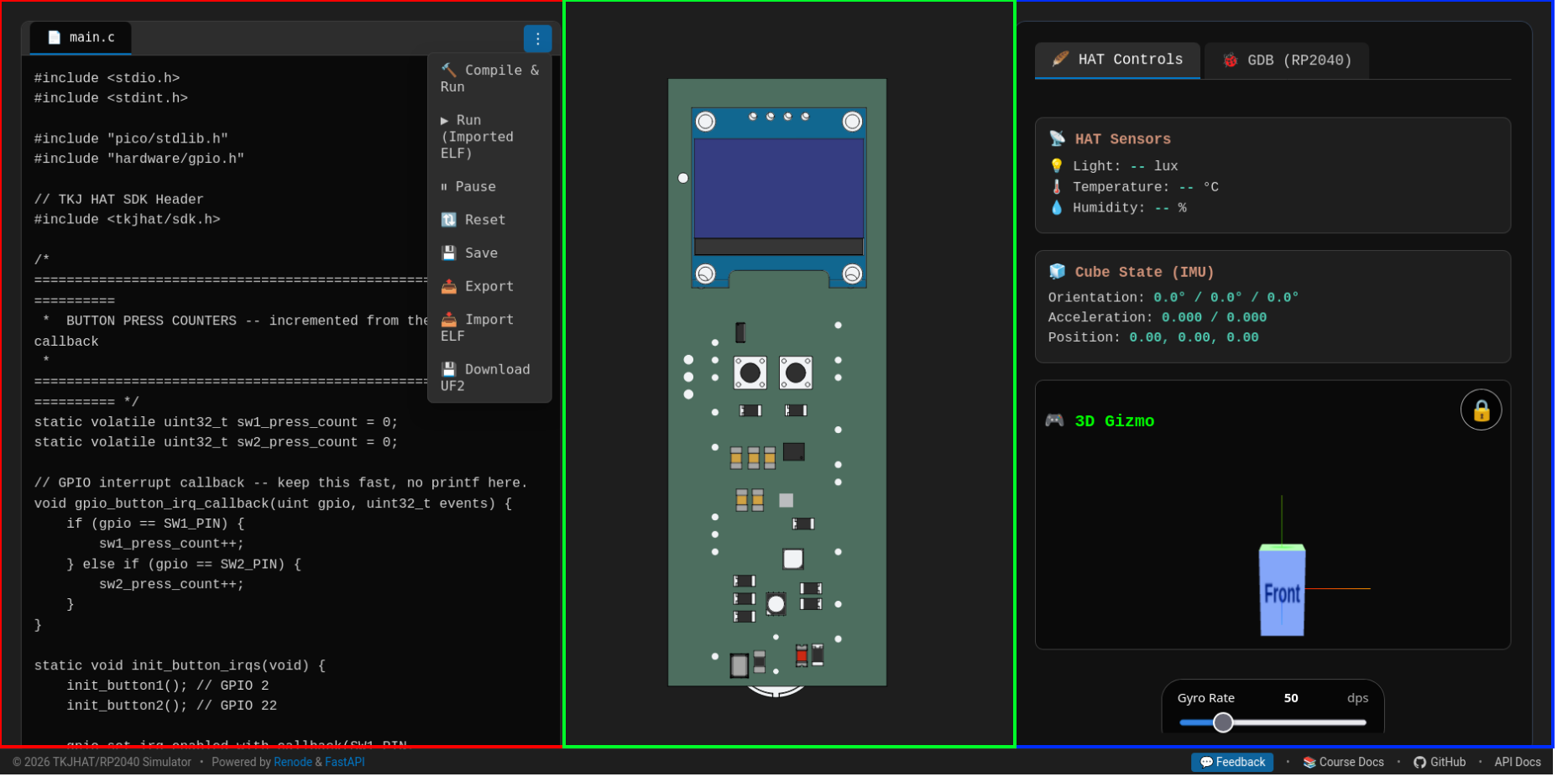
The interface consists of three distinct parts:
Code Editor & Actions (Red):
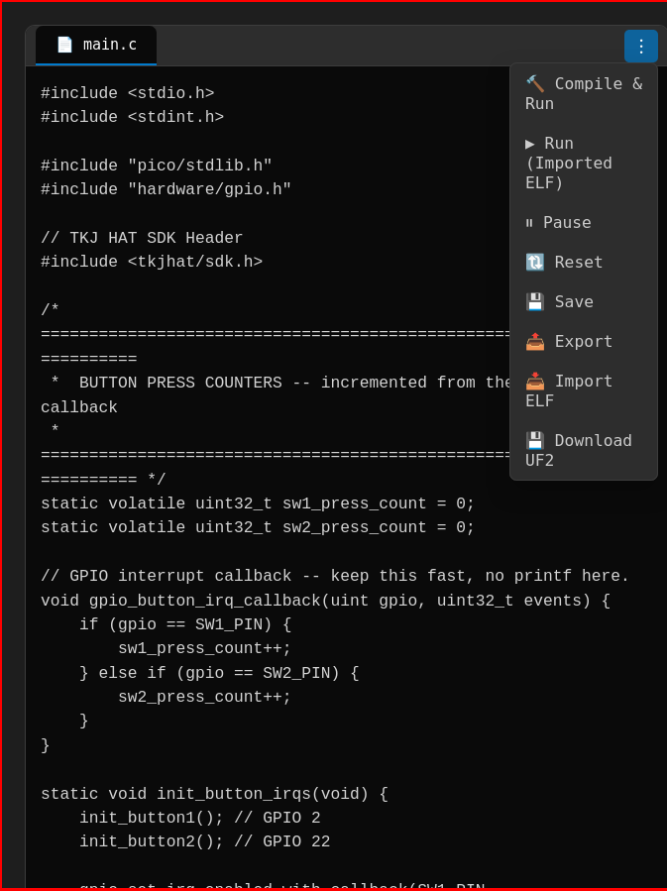
This part contains tools to write, build, and control your firmware. In the editor, you can write and modify your C code (main.c), Pause or Reset the active simulation, or Export your source code. You can also upload your precompiled .elf file or having your C code compiled by the platform, though this method is recommended against since this method takes lots of time and resource, and in high traffic circumstances, outright stops working. So the recommended method is to compile in your own VMs or machines then upload the compiled .elf code to the platform.
Interactive Virtual TKJHAT Board (Green):
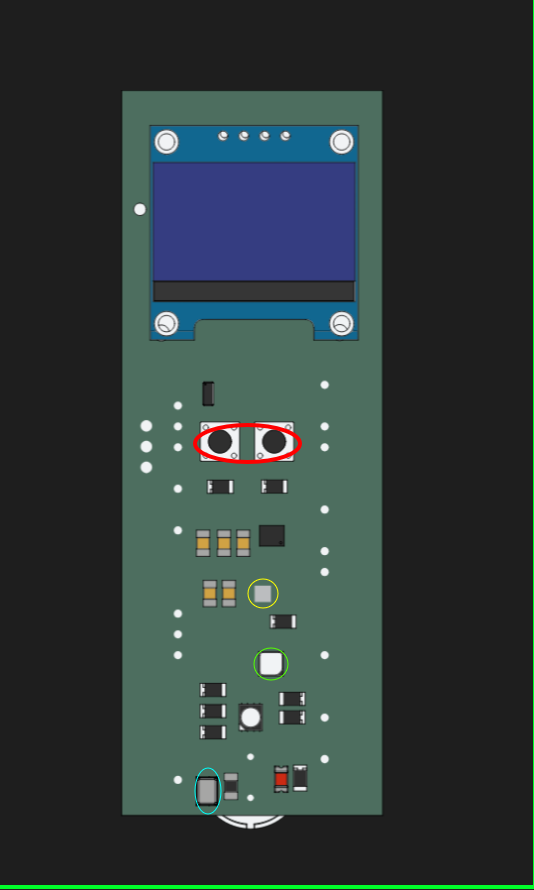
This panel provides a realistic visual model of the TKJHAT add-on board. Clicking on the components allows you to interact directly with the simulated hardware:
- Push Buttons (Red circle):** Interactive GPIO buttons. Click to simulate pressing and releasing physical buttons, triggering interrupts in your firmware.
- Temperature & Humidity Sensor (Yellow circle): Clicking this opens a popup with sliders to dynamically change the ambient temperature and humidity.
- Ambient Light Sensor (Green circle): Clicking this opens a slider to adjust the ambient light level (lux) in the environment.
- Microphone (Cyan circle): Clicking this component opens a dialog where you can upload an audio file to feed simulated sound input into your ADC or audio processing routines.
Telemetry & Hardware Controls (Blue):
This panel provides real-time sensor feedback and debugging tools split across two tabs: the HAT Controls tab displays live environmental readings (light, temperature, humidity) and features an interactive 3D Gizmo with orientation controls and a gyro-rate slider to simulate physical motion and stream IMU data to your code, while the GDB (RP2040) tab provides a live UART serial console to view "printf()" output and send input text directly to your running firmware, alongside a call stack and variables viewer for low-level debugging.
Usage Notes
Please keep the following limitations, recommendations, and guidelines in mind while using the simulator:
- Avoid using the buzzer/speaker: Emulating audio requires significant CPU overhead. Under current cluster resource constraints on CSC Rahti, playing sounds can either stretch notes out for several minutes or crash your simulation pod entirely.
- Compile locally when possible: We strongly recommend compiling your code on your own machine and using the Import ELF feature instead of using the online compiler. Cloud compilation consumes heavy resources and may slow down your session or fail if the cluster is busy.
- Test on physical hardware before final submission: This emulator provides an estimated 80–90% behavioral accuracy, but it is not a cycle-accurate or bit-exact representation of the physical silicon. Minor discrepancies in hardware timing and peripheral responses can occur, so always verify your final implementation on the real Raspberry Pi Pico and TKJHAT hardware before submitting your work.
- Report bugs and give feedback: This platform was built and maintained by a single person, so edge cases and bugs will inevitably surface. Please report any crashes, odd behavior, or UI bugs using the Feedback link at the bottom of the page—all feedback is genuinely appreciated!
- Interested in research use? If you would like to use this virtual Renode/TKJHAT platform for your own personal research or thesis projects, feel free to contact the course TAs for more details and dedicated access.
Give feedback on this content
Quick feedback: What did you like, and what should we improve?