Registration Tasks
Due date: 2025-11-11 20:30.
Please complete all registration steps below before the deadline. To receive points, make sure to click
Send Answer inside each textbox after filling in your answers.Form a Group and Register Your Group
Before choosing your hardware setup, you must form your team. Teams can have up to 3 members.
Below is a short guide to forming a group in Lovelace. To start, choose "Group info" ("Ryhmän tiedot" in Finnish) from the top right drop down menu.

A group is formed by one student, who then invites the other members.
Important: only one member of a group should create one. If other students create a group, they can no longer be invited because they now belong to the group they created! Discuss beforehand who from the team forms the group.
In order to create a group, simply write the desired group name into the text field as seen in the example below.
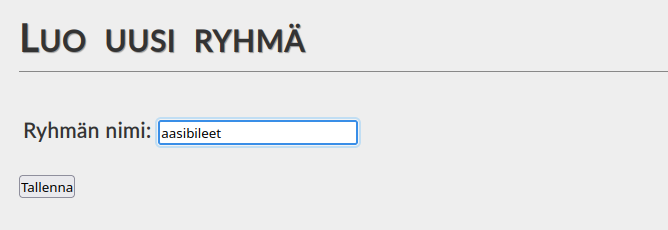
Once you have created a group, you can send up to N-1 invitations where N is the group maximum size. In order to invite someone, you have to know their user ID. By default this is the same as your university username (i.e. your first and last name shortened together, and postfixed with the last two digits of your starting year), with
@oulu.fi attached to the end. E.g. aasitest22@oulu.fi would be the username of the example student seen in these screenshots.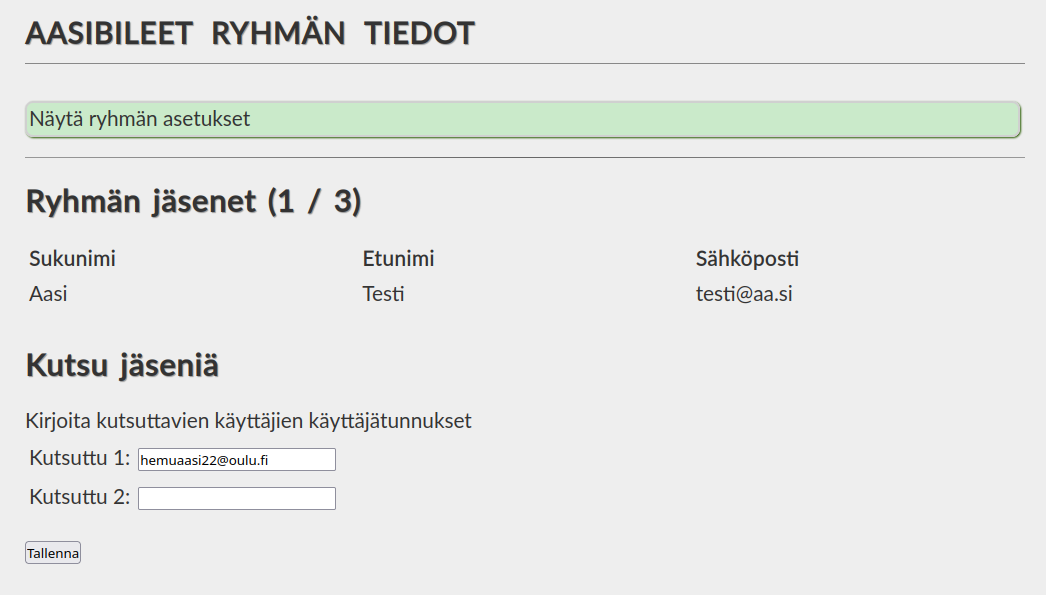
Once the invitations have been sent, the other members should visit their "Group info" page to see and accept the invitation.
FAQ
Q: How do I find group members?
A: You can either look through and post in the #team-projects channel in Discord and find group members there, or you can attend lectures and exercise labs to meet your classmates and find group members.
A: You can either look through and post in the #team-projects channel in Discord and find group members there, or you can attend lectures and exercise labs to meet your classmates and find group members.
Q: What if more than one group member created a group?
A: Due to how answers are shared between group members, we have disabled the ability for students to delete groups, and removing members from them. If you cannot invite your group member because they have also have created a group, please contact course staff so that they can delete one of the groups.
A: Due to how answers are shared between group members, we have disabled the ability for students to delete groups, and removing members from them. If you cannot invite your group member because they have also have created a group, please contact course staff so that they can delete one of the groups.
Hardware Setup Decision Guide
After forming your team, decide which VR hardware setup your team will use.
Use the diagram below to determine your choice:
Use the diagram below to determine your choice:
If you own a high-end HMD:
→ Use your own VR headset (any model works).
→ Use your own VR headset (any model works).
If you do not own a high-end HMD but have an Android phone:
→ Use a VR Cardboard headset.
→ We will provide one for you.
→ Use a VR Cardboard headset.
→ We will provide one for you.
If you do not have either:
→ Form a team and use a teammate’s VR Cardboard and Android phone.
→ Form a team and use a teammate’s VR Cardboard and Android phone.
If nobody in your team has one:
→ Work with Cardboards and iPhones
→ And/Or borrow an Oculus Quest 2 from us.
→ Work with Cardboards and iPhones
→ And/Or borrow an Oculus Quest 2 from us.
Anna palautetta
Kommentteja materiaalista?